iPhone 6 and iPhone 6 Plus have created a lot of buzz since the
announcement made last September 9, and that includes Apple's record breaking 4
million pre-orders within 24-hours. These new flagship handsets are now
available to select countries and as expected, they are flying off the shelves.
But, if you are one of the unfortunate individuals who at this point in time,
can't get hold of these handsets, do not fret. You can install the latest iOS
on your iPhone and make it feel new again.
Apple's iOS 8 is packed with a lot of amazing features all iOS
fans will surely love. Apart from the many features that were advertised, such
as third-party keyboard support, Health app, and iCloud Drive, there are hefty
hidden features that you probably haven't heard or discovered yet.
Here are some of the hidden iOS
8 tricks and features that will make your phone feel new again:
1. Credit Card Scanning Within Safari
In iOS 8, you can use the Camera app to scan your credit card
when shopping online from your Safari browser. There's no need to manually type
your credit card number. Instead, scan your credit card using your iPhone
camera, and it will automatically pull up the card number and paste them into
the correct field to make checkout hassle free.

2. Hide Photos and Videos from the Photos App
With iOS 8, you can hide individual photos and videos from the
Moments, Collections, and Years view in the Photos app. Simply tap and hold the
photo or video, and then tap Hide from the pop-up. The photo will not be
seen in the Moments, Collections, and Years albums, but can be viewed in the
album named Hidden.

3. Quickly Access Your Favorite Contacts
You can quickly access your Favorite contacts by simply pressing
the Home button twice. This cool feature will allow you to call or message your
family and friends much faster.

4. Recover Accidentally Deleted Photos
Have you ever deleted a photo by accident? For sure this is not
an uncommon occurrence. The problem with previous iOS, once a photo or video is
deleted, there is no way to recover it unless you have created a backup. With
iOS 8, you can now recover accidentally deleted photos.
In iOS 8, all deleted photos from the Photos app will go
directly to the Recently Deleted
album. When you open this album, it will display all deleted photos including
the days each photo has until it is permanently deleted. To retrieve the
photos, simply select them and tap Recover.

5. Grayscale Mode
iOS 8 features a new grayscale mode for those who aren't fans of
color. To enable this setting, simply go to Settings > General > Accessibility. From
there, toggle Grayscale to turn your screen to black and
white.

6. Identify the Apps Using the Most Battery Life
iOS 8 has a new Battery Usage panel that allows you to view the
battery usage of each app in used. It can monitor how much battery each app
use, so you can close the apps that draw a lot of power when you aren't using
them. To access the Battery Usage panel, just go to Settings > General > Usage > Battery Usage. This
will show you a list of all the apps draining your battery life.

7. Add Photos, Videos, and Animated GIFs to Notes
The Notes app in iOS 8 now supports rich texts, photos, and
videos. It even supports animated GIFs for more fun notes. To add an animated
GIF, just copy and paste a GIF or select photos from the Photo library to
insert as animated GIF. Also, if you want to add a photo to a note, simply tap
and hold the screen until the floating menu appears, then tap Insert
Photo, and then select a photo from your Photo library.

8. Display 9-Day Weather Forecast
With iOS 8's Weather app, you can get a 9-day weather forecast,
including sunrise, sunset, and UV index. You can even get an hourly forecast
for a full 24 hours instead of the usual 12. You will also receive a short
description of what's to come without having to go to the Notification Center.

9. New Zoom
The zoom option found in the Accessibility settings has been
improved in iOS. You can now increase or decrease the size of the magnifier as
well as toggle its settings. Simply drag the walls of the magnifier lens and
set the order of Magnification according to your needs.

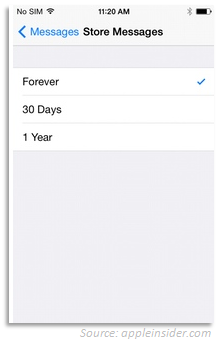
10. Automatically Delete Text and Picture Messages
One way to speed up your iPhone is by deleting old messages. In
iOS 8, there is an option to control how long text and picture messages are stored
on your phone. Simply go to your Messages app, and then tap Store
Messages. From there, you can set your iPhone to automatically
delete messages after 30 days or 1 year. If you do not want to automatically
delete your old messages, you can leave the Forever option checked.